
Cases and Case Builder: structured learning in practice
The Cases system in CRM Force Training offers a unique way to document, analyze, and solve Salesforce challenges step by step — with AI assistance and a visual Kanban board.
From chaos to structure
Every Salesforce professional knows it: an error message you don't understand, a Flow that doesn't do what you expect, or an optimization question you can't get a grip on. Often these problems disappear into a notebook, a Slack channel, or worse — your head.
The Cases system in CRM Force Training fundamentally changes this. Instead of solving problems ad-hoc, you work with a structured system that guides you through the entire process: from initial analysis to production-ready solution.
With the AI-driven Case Builder, you get immediate insight into the nature of your problem and concrete suggestions for approach. The Kanban board tracks your progress and ensures nothing falls through the cracks.
What exactly are Cases?
A Case in CRM Force Training is a structured ticket for a Salesforce challenge. This can be anything: an error message you want to resolve, an existing automation you want to optimize, or new functionality you want to build.
The difference from a regular task list? Cases are connected to your Salesforce environment, analyzed by AI, and follow a clear workflow with statuses and checkpoints.
Error Case
You're getting an error in a Flow or Apex. The Case Builder helps you identify the cause and guides you to a solution.
Optimization Case
An existing automation works, but could be better. The AI analyzes your current solution and suggests improvements.
New Feature Case
You want to build something new. The Case Builder helps you structure requirements and choose the right approach.
Learning Case
You want to understand a concept better. The Case guides you through practical exercises connected to your own org.
"Cases aren't support tickets — they're learning moments that you document and work through."
The Dashboard: your starting point
When you log into CRM Force Training, you immediately see the dashboard with all your active modules. The Cases module shows your ongoing cases here, grouped by status.
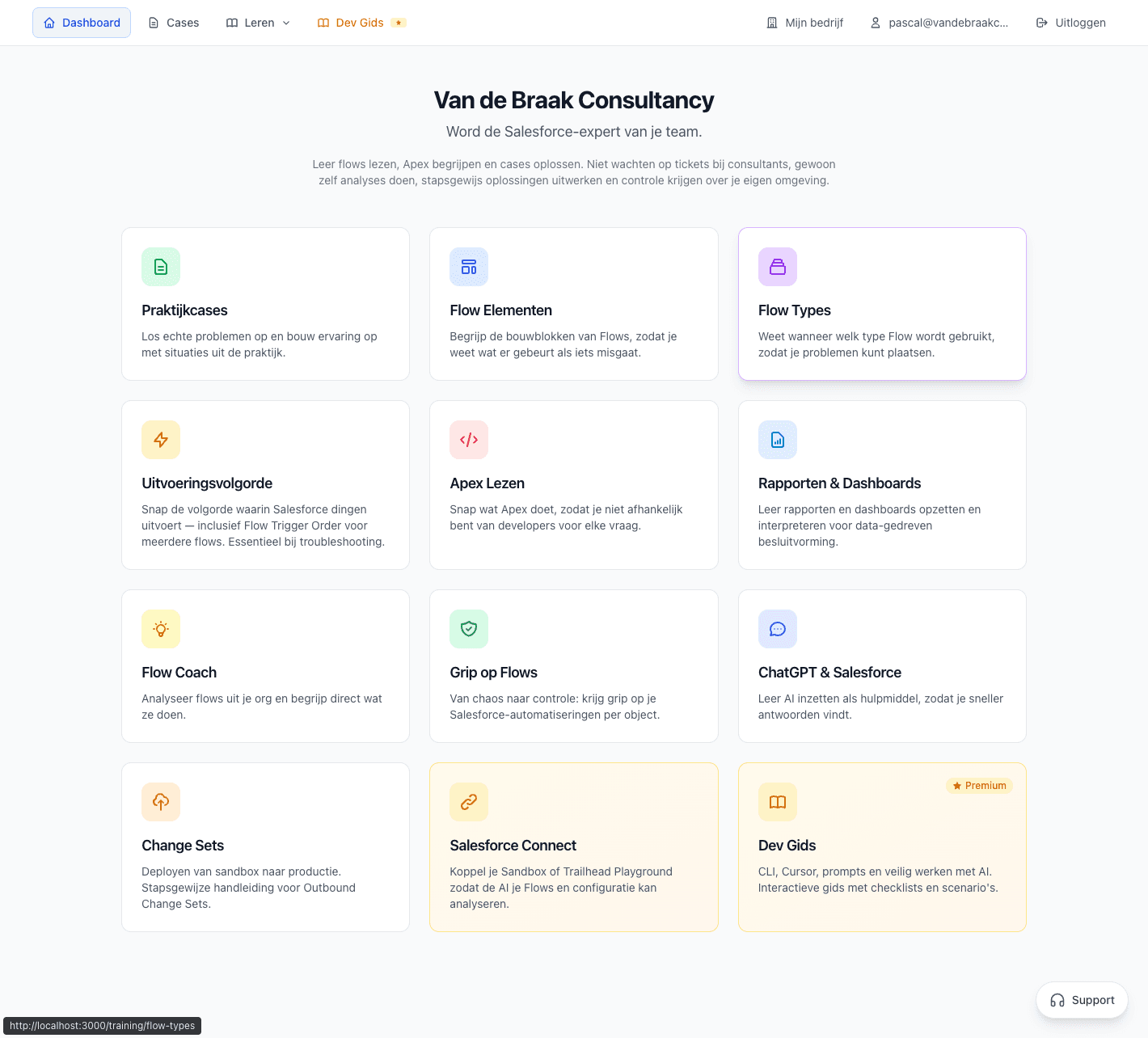
The dashboard shows your active cases alongside other modules like Flow Coach and Flow Overview.
From the dashboard, you can navigate directly to your Cases board, or create a new case via the Case Builder.
The Case Builder: AI-driven analysis
The Case Builder is the heart of the system. Here you describe your problem or question in your own words, and the AI immediately analyzes what you need.
You don't need to ask a perfectly formulated question. The Case Builder understands context, recognizes patterns, and asks clarifying questions where needed.
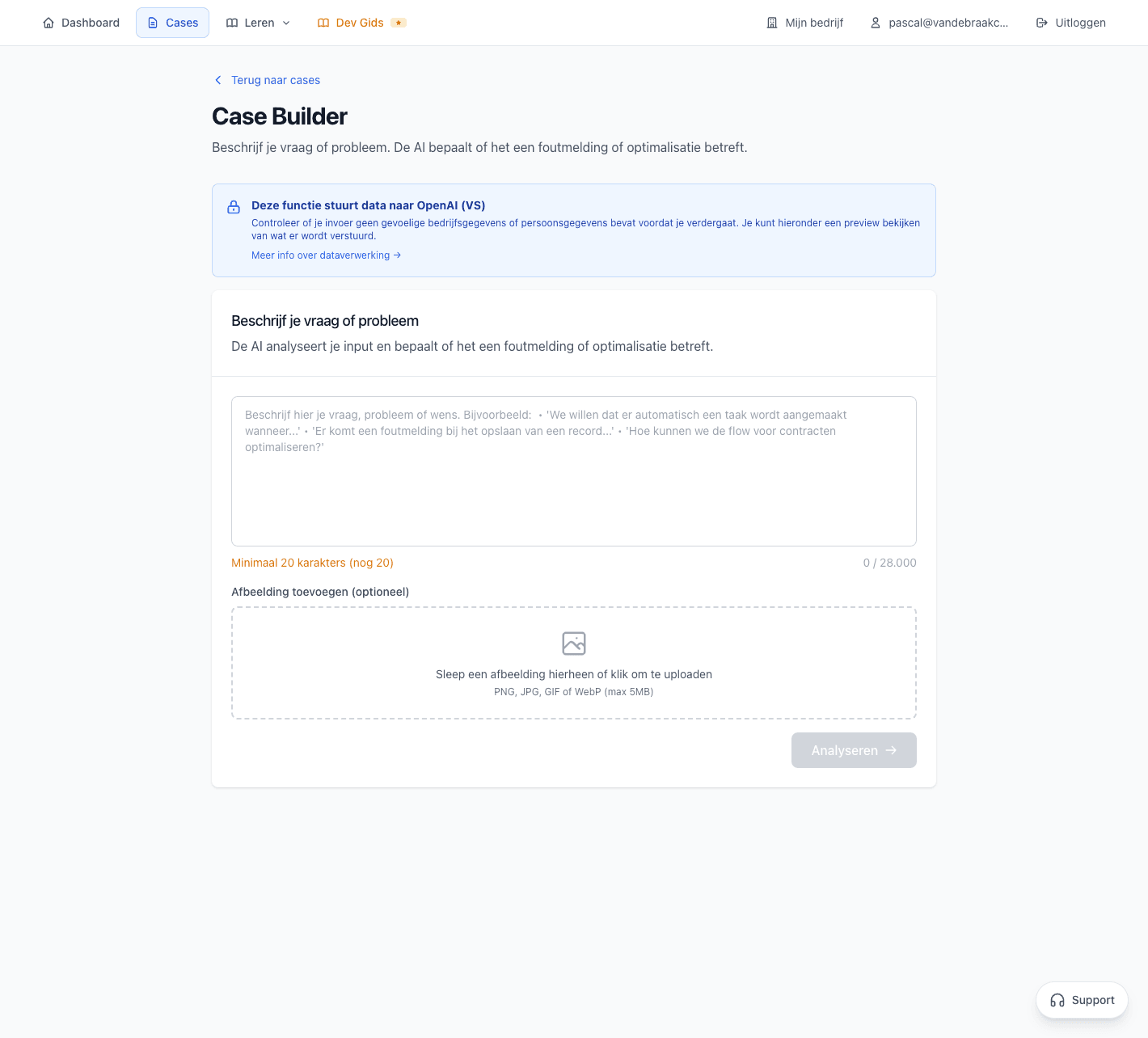
The Case Builder analyzes your description and automatically categorizes the type of problem.
What the AI does for you
The AI analysis in the Case Builder goes beyond simple categorization:
- Problem categorization: Recognizes whether it's an error, optimization, or new feature
- Priority suggestion: Estimates how urgent the problem is based on the description
- Approach suggestions: Provides concrete first steps to tackle the problem
- Related documentation: Links to relevant knowledge articles and best practices
- Complexity estimate: Gives an indication of the expected effort
Automatic categorization
The Case Builder automatically categorizes your problem into one of the following types:
Error
Something isn't working as expected. Focus is on diagnosis and solution.
Optimization
Something works, but could be better. Focus is on improvement and best practices.
New functionality
You want to build something new. Focus is on requirements and architecture.
The Kanban Board: visual overview
All cases come together on the Kanban board. This gives you a visual overview of where each case is in the resolution process.
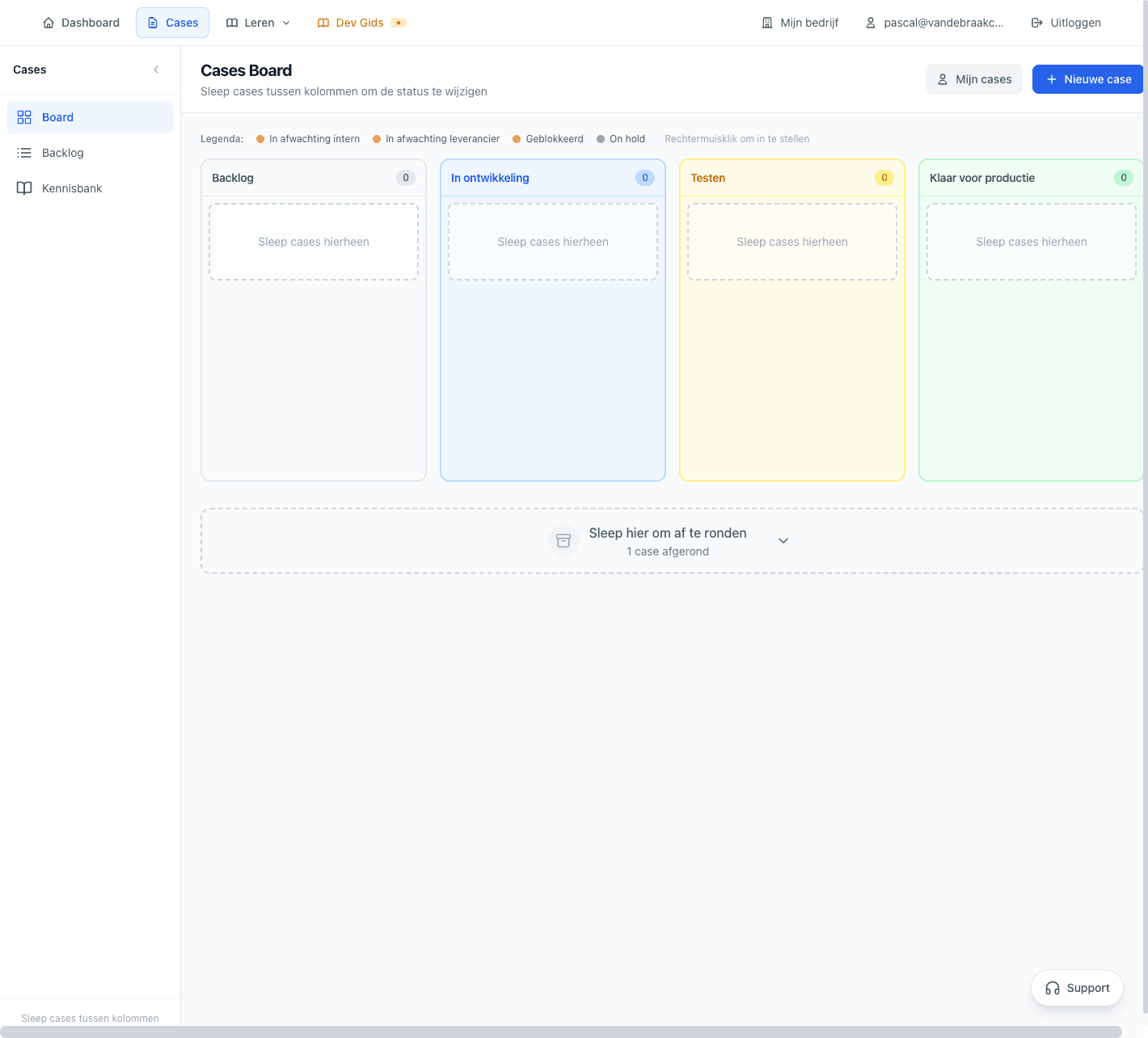
The Kanban board shows all your cases grouped by status. Drag cases between columns to change status.
The four statuses
Each case goes through four main statuses:
New cases not yet in progress. Here you collect everything you want to tackle.
Cases you're actively working on. Here you build and test your solution in a Sandbox.
Solutions ready for testing. Here you verify everything works as expected.
Tested solutions ready for deployment to production.
Substatuses for detail
Within each main status, you can use substatuses for more detail:
- Waiting for info: You need additional information before you can continue
- Blocked: There's an external blocker that needs to be resolved
- In review: The solution is being reviewed by a colleague or consultant
- Archived: The case is completed and documented for future reference
Drag-and-drop functionality
You can easily drag cases between columns to change status. This makes managing multiple cases intuitive and fast.
The Case workflow: from start to finish
A typical case goes through the following steps:
Step 1: Create a case
You start with the Case Builder and describe your problem or question:
- Open the Case Builder from the dashboard
- Describe your problem in your own words
- Review the AI analysis and adjust where needed
- Save the case — it appears in your Backlog
Step 2: Working on the solution
When you start working on a case, move it to 'In development':
- Follow the AI suggestions for first steps
- Build and test your solution in a Sandbox environment
- Document your progress and findings in the case
Step 3: Testing and verification
When you think the solution works, move to 'Testing':
- Define test scenarios the solution must pass
- Test edge cases and error scenarios
- Optionally have a colleague review
Step 4: Production and closing
After successful tests, move to 'Ready for production'. Deploy your solution, verify in production, and archive the case with your learnings.
Why this system works
The Cases system offers concrete benefits for your Salesforce development:
Structured learning
Instead of solving problems ad-hoc, you work with a proven workflow. This ensures consistency and prevents skipping steps.
AI assistance
The AI helps you with analysis, categorization, and approach. You don't have to figure everything out yourself — but you do learn by doing.
Track progress
The Kanban board always gives you insight into what's happening. No forgotten tasks or half-finished solutions.
Real practice
Cases are connected to your own Salesforce environment. You work with real problems and real solutions.
"The difference from a course? You solve your own problems, not fictional scenarios."
Integration with other modules
Cases work seamlessly with other modules in CRM Force Training:
- Flow Coach: Analyze Flows you're working on in a case and get deeper insights
- Flow Overview: Link cases to specific Flows in your org for context
- Expert Support: Schedule a support call about a specific case with full context
- Implementation Guide: Link cases to relevant sections from the guide for documentation
This integration ensures you always have the right context, regardless of where you start.
Free trial vs. full package
Cases are available in all packages, with some differences:
Free trial (14 days)
- Up to 5 active cases
- Basic AI analysis
- Kanban board functionality
Full package
- Unlimited cases
- Extended AI analysis with prioritization
- Case history and archive
- Expert Support integration
Have your service processes set up?
Salesforce in plain language. Finally.
- 14-day free trial
- No credit card required
- Expert support included
- Connect your Salesforce org instantly